Add live price drops to your store.
Follow the pictures. Each step has one job, and the yellow box shows you exactly where to click. It takes about 10 minutes. Developers: the reference is at the bottom.
- An email address.
- Something to sell, and a photo of it.
- Your business and bank details, so you can get paid (Stripe asks for these).
- Only for step 7: your own website. No website? Skip step 7. Your Freefall page works on its own.
1 Make your account
Go to freefallexchange.com/account/register. Type your name, your business name, your email and a password. Tick the box to agree to the terms, then press Create account.
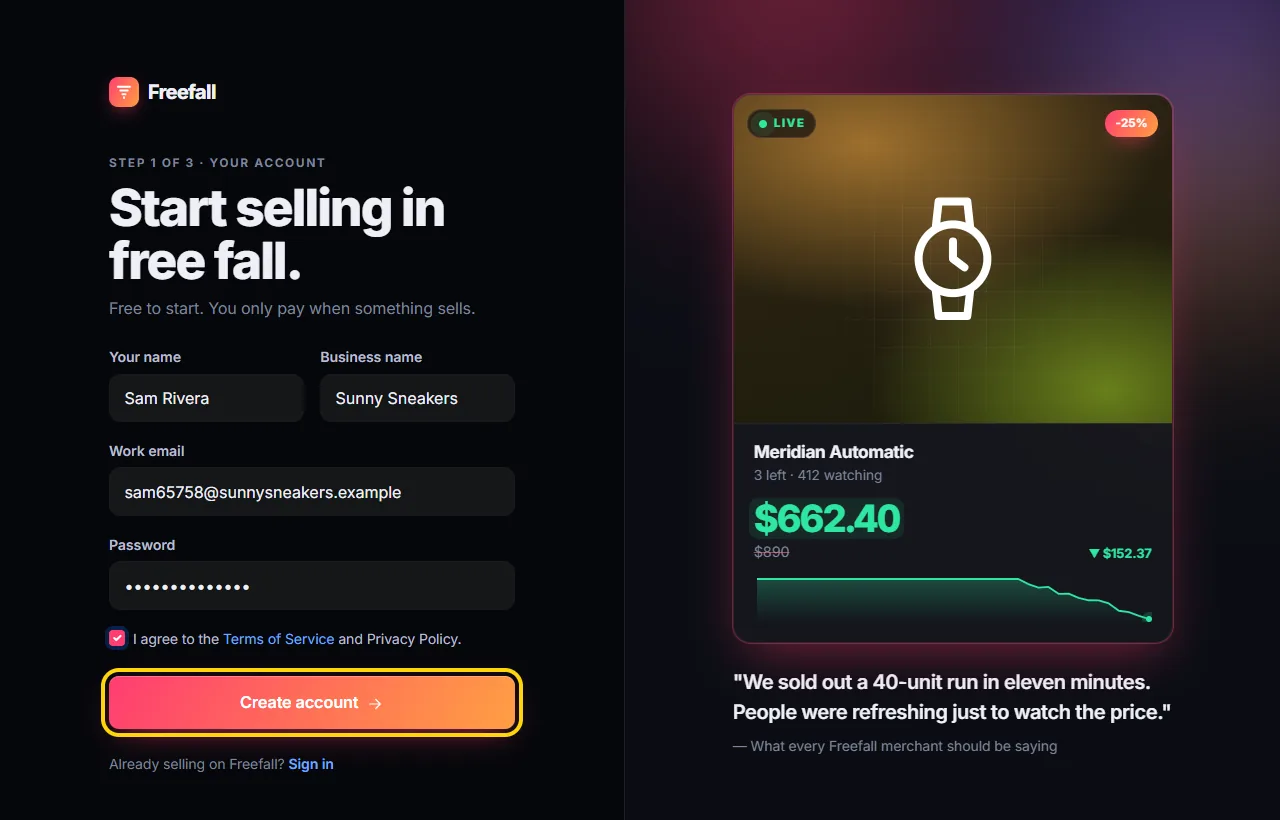
It's free. You don't need a card to start.
2 Make your store
Give your store a name and pick its address. The address is the link people will
visit, like freefall.app/sunny-sneakers. Add a short tagline if you like, then press Create store.
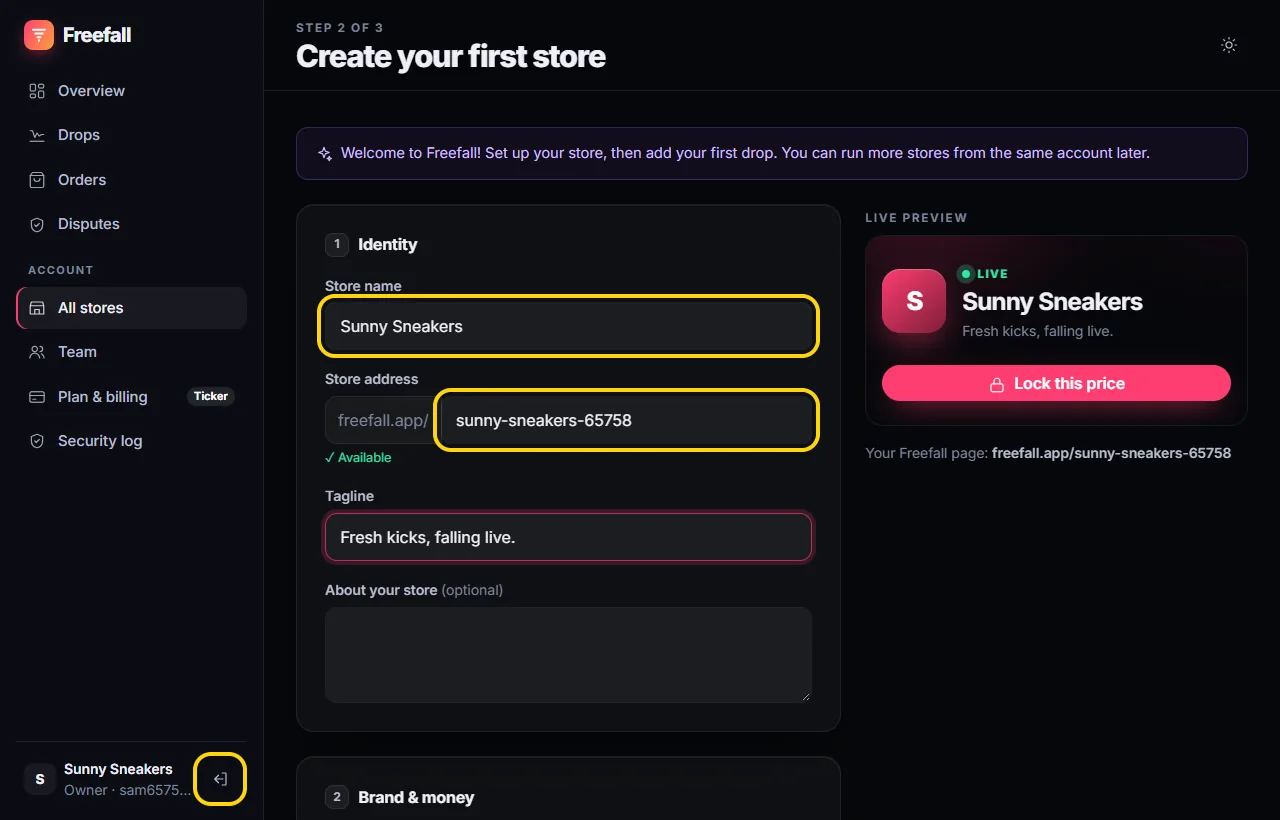
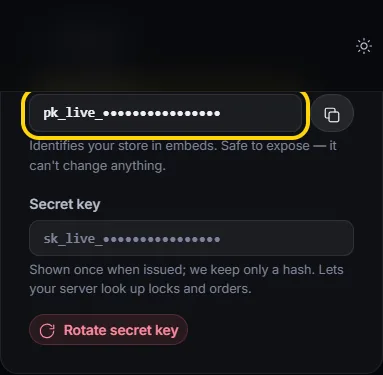
You'll see a secret key once after this. If you have a developer, copy it somewhere safe for them. If you don't, you can ignore it.
3 Connect your payouts
This tells Freefall where to send your money. In the menu, press Payouts, then Connect with Stripe. Stripe asks for your business and bank details. When you're done, you come back here automatically.
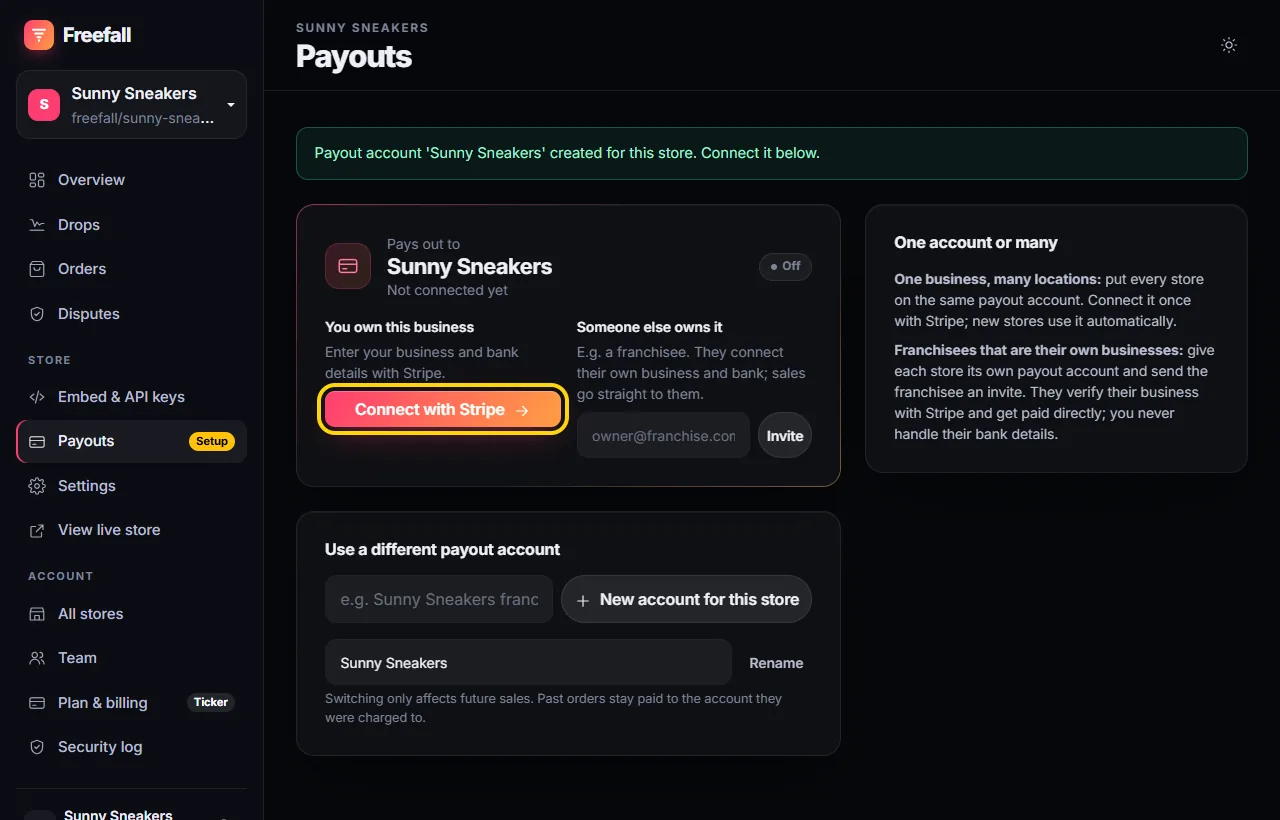
When it's connected, you'll see a green Active badge.
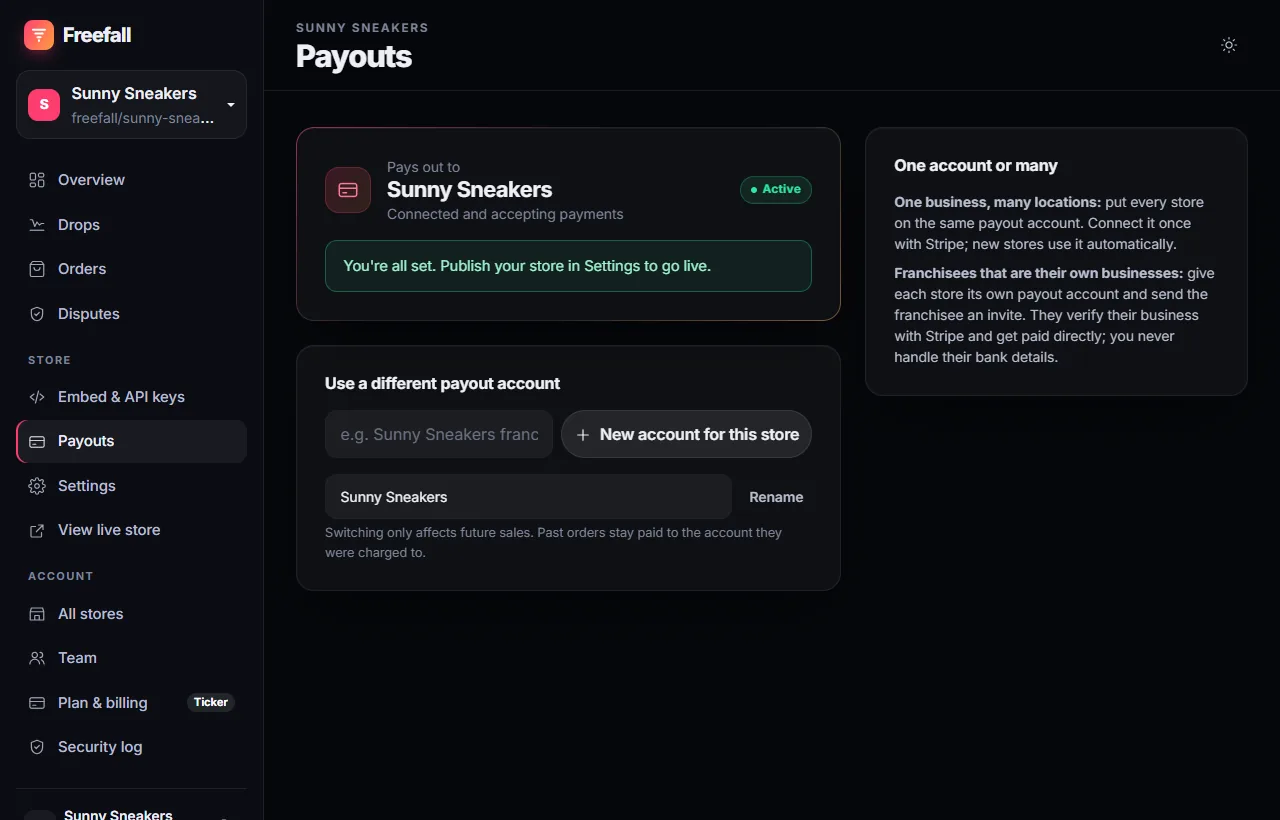
Running several locations? They can share one payout account, or each have their own on the Exchange plan.
4 Turn your store on
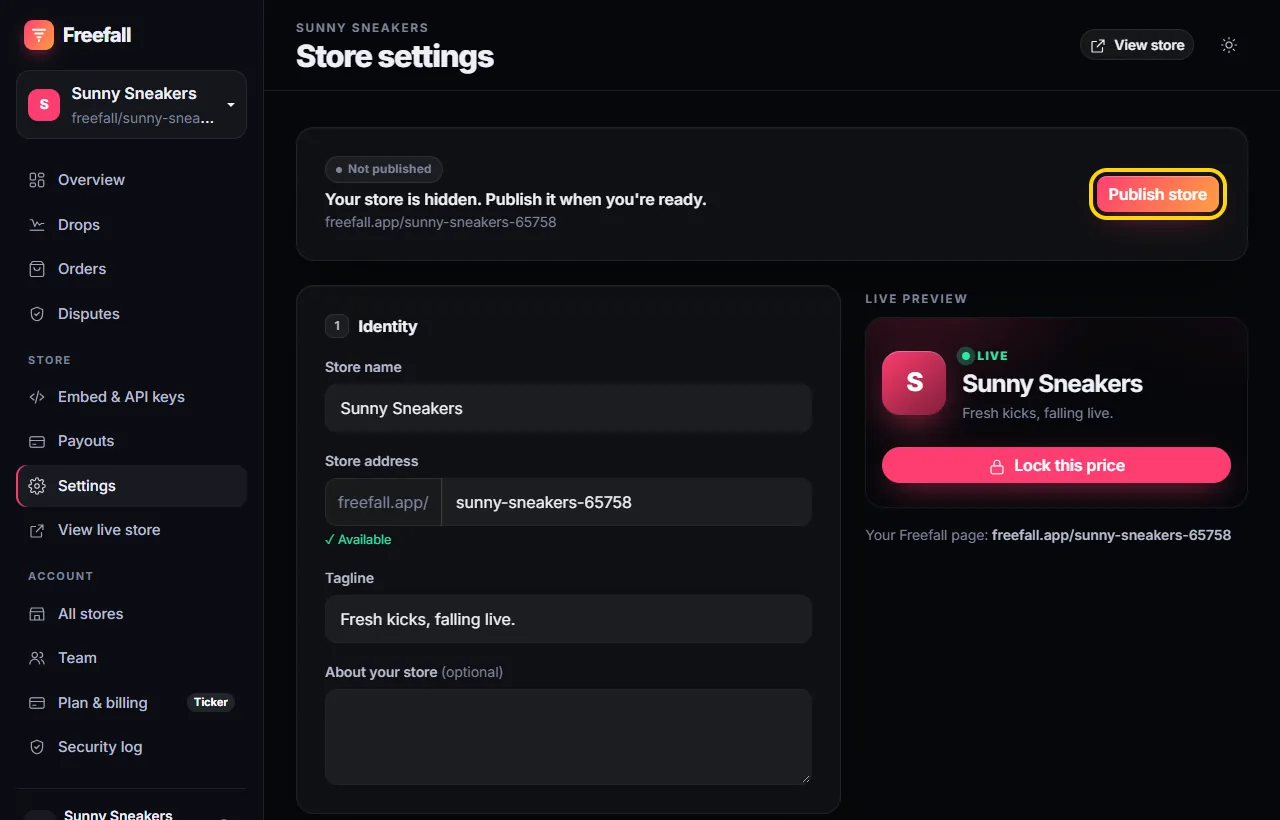
In the menu, press Settings, then Publish store. Until you do this, nobody else can see your store.
5 Make your first drop
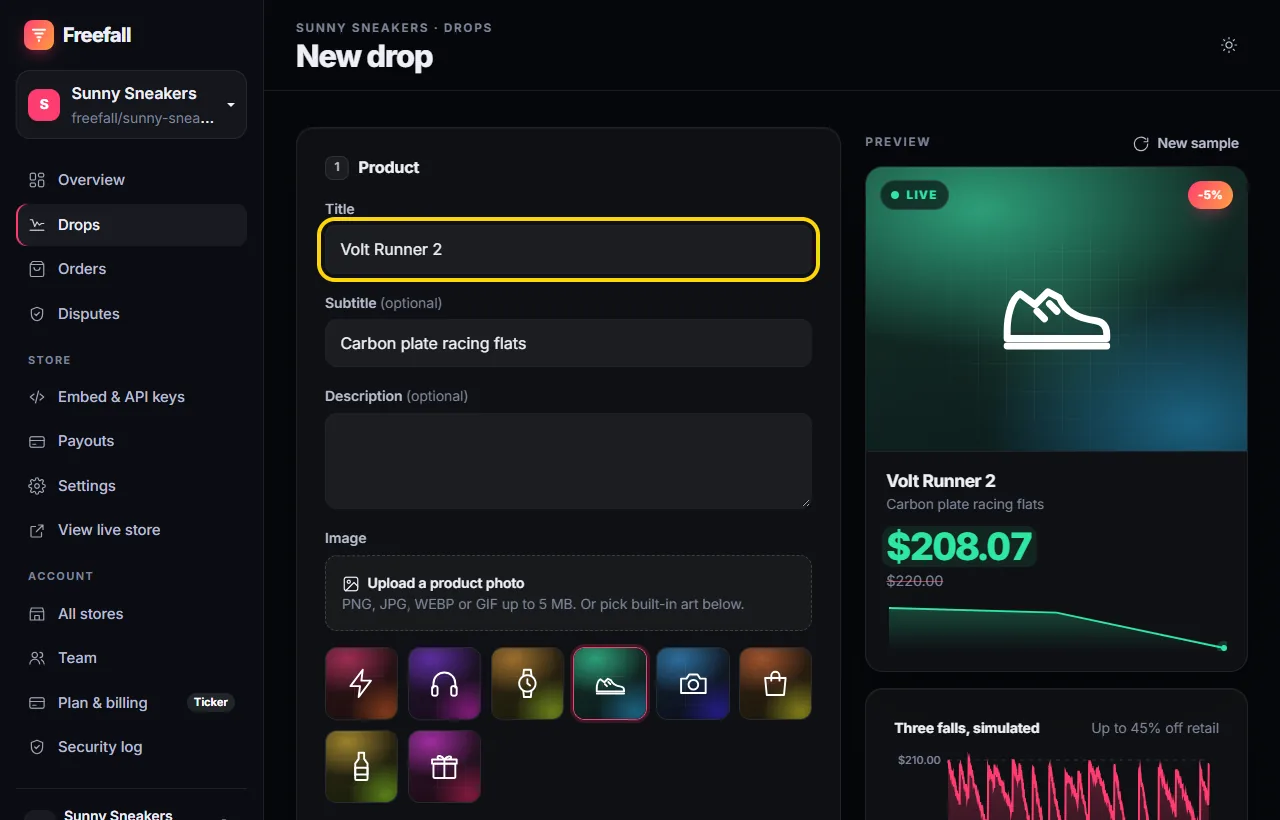
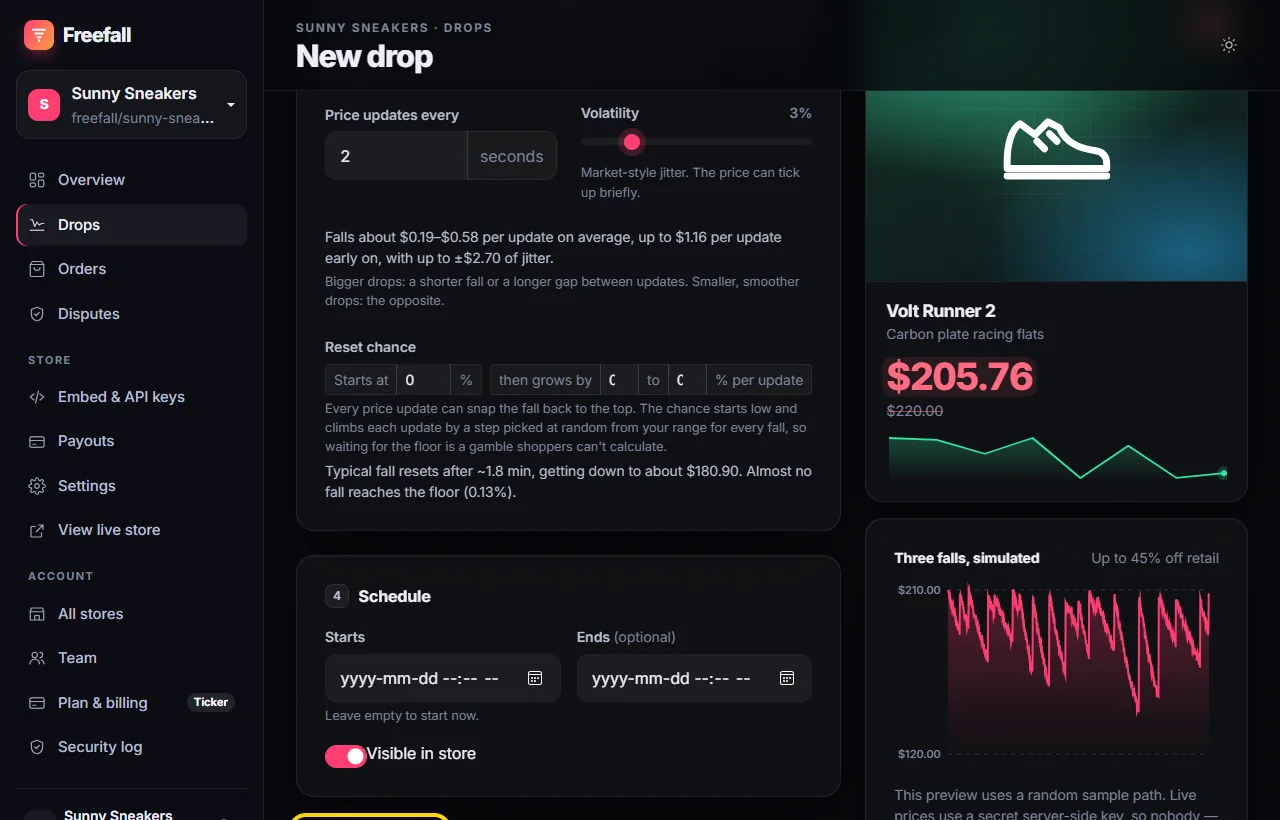
A drop is one thing you're selling, with a price that falls live. In the menu, press Drops, then New drop.
First, what is it? Type a title, add a photo (or pick a picture), and write a little about it.
Next, the prices. These three numbers matter most:
- Starting price: where the price starts each time it falls. Usually close to the normal price.
- Floor price: the lowest it can ever go. Shoppers never see this. Pick a price you'd still be happy with, including shipping (you ship orders yourself).
- Quantity: how many you're selling.
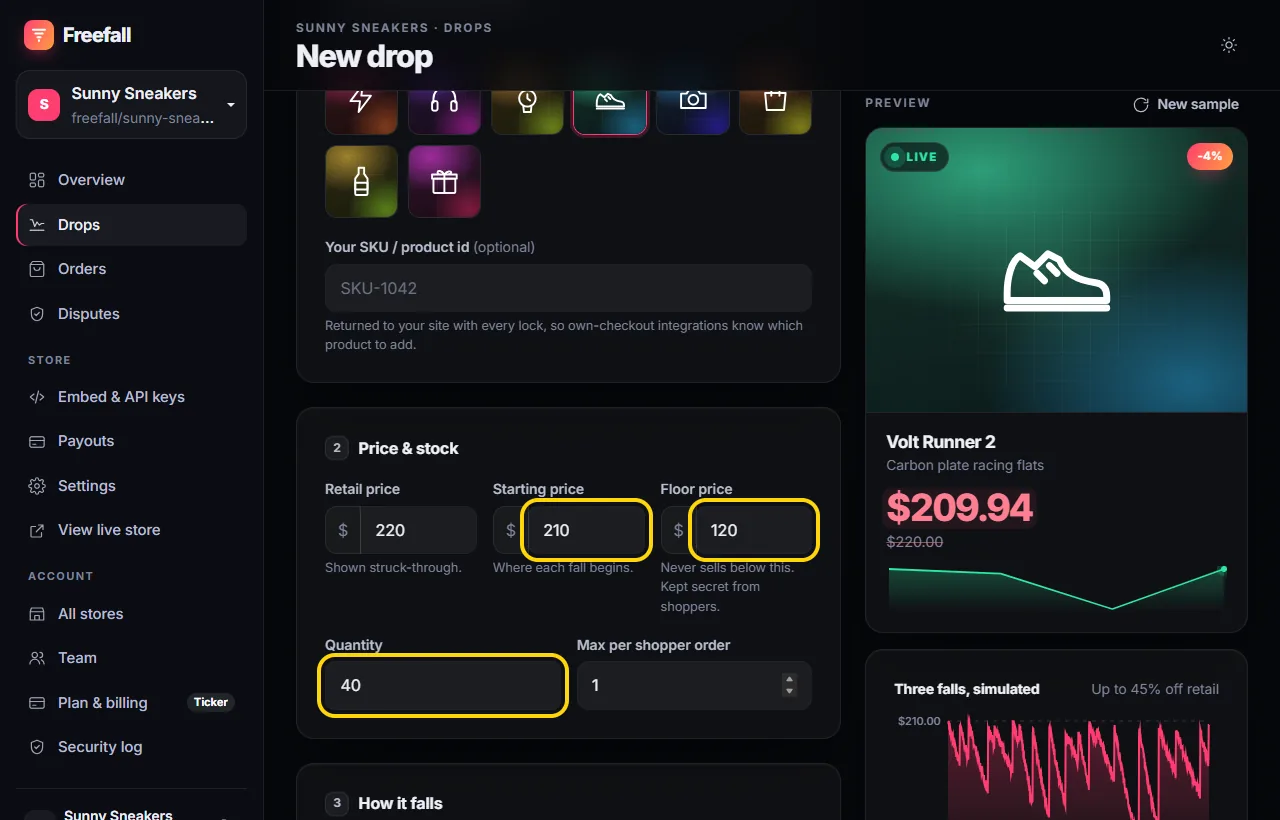
The Retail price is shown crossed out, so shoppers can see the deal. The preview on the right shows what shoppers will see.
Then, how it falls. Pick a style:
- Plunge: drops fast at first. Good for exciting launches.
- Steady: drops evenly.
- Slow burn: stays high, then drops faster at the end. Good for special items.
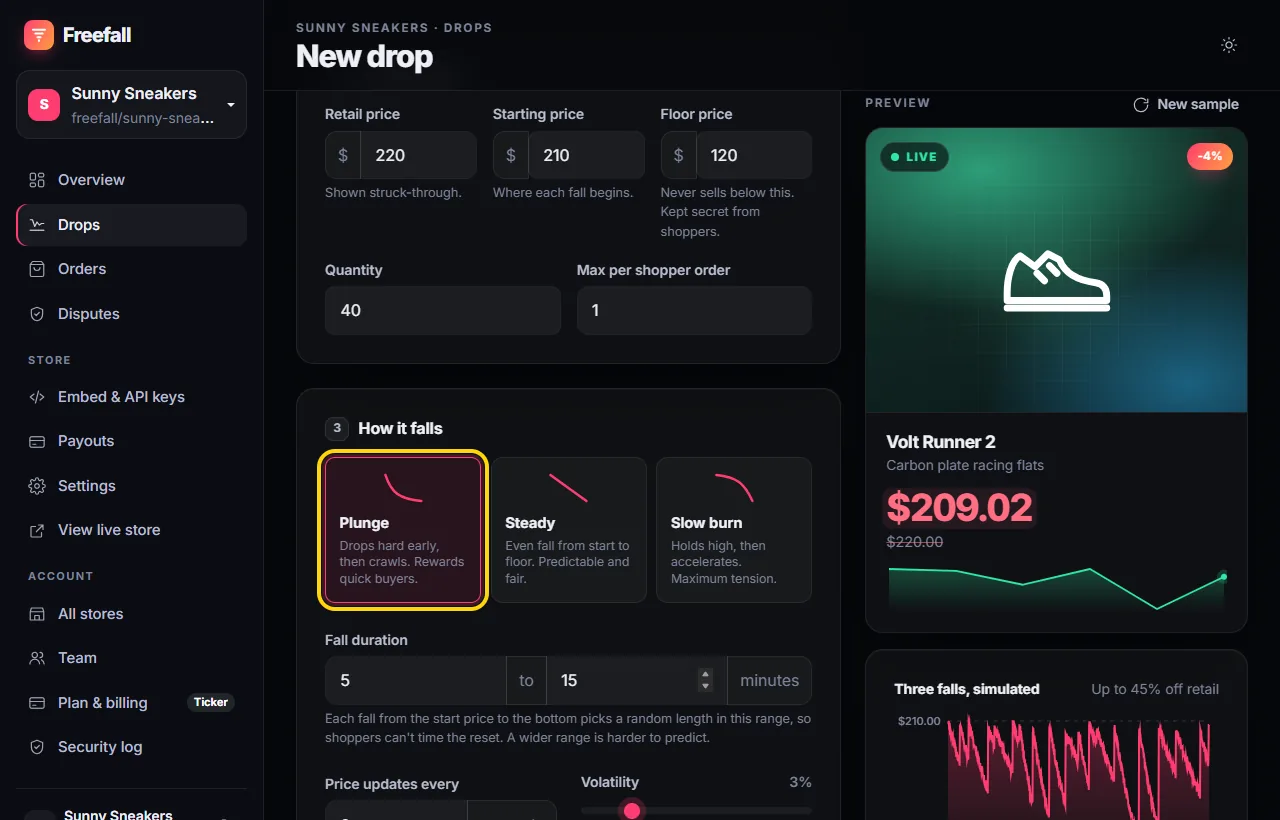
Each fall lasts a random time (5 to 15 minutes to start with), and sometimes the price jumps back to the top. That's what stops people from just waiting for the lowest price. You can leave the other settings as they are.
Last, press Launch drop.
6 See it live
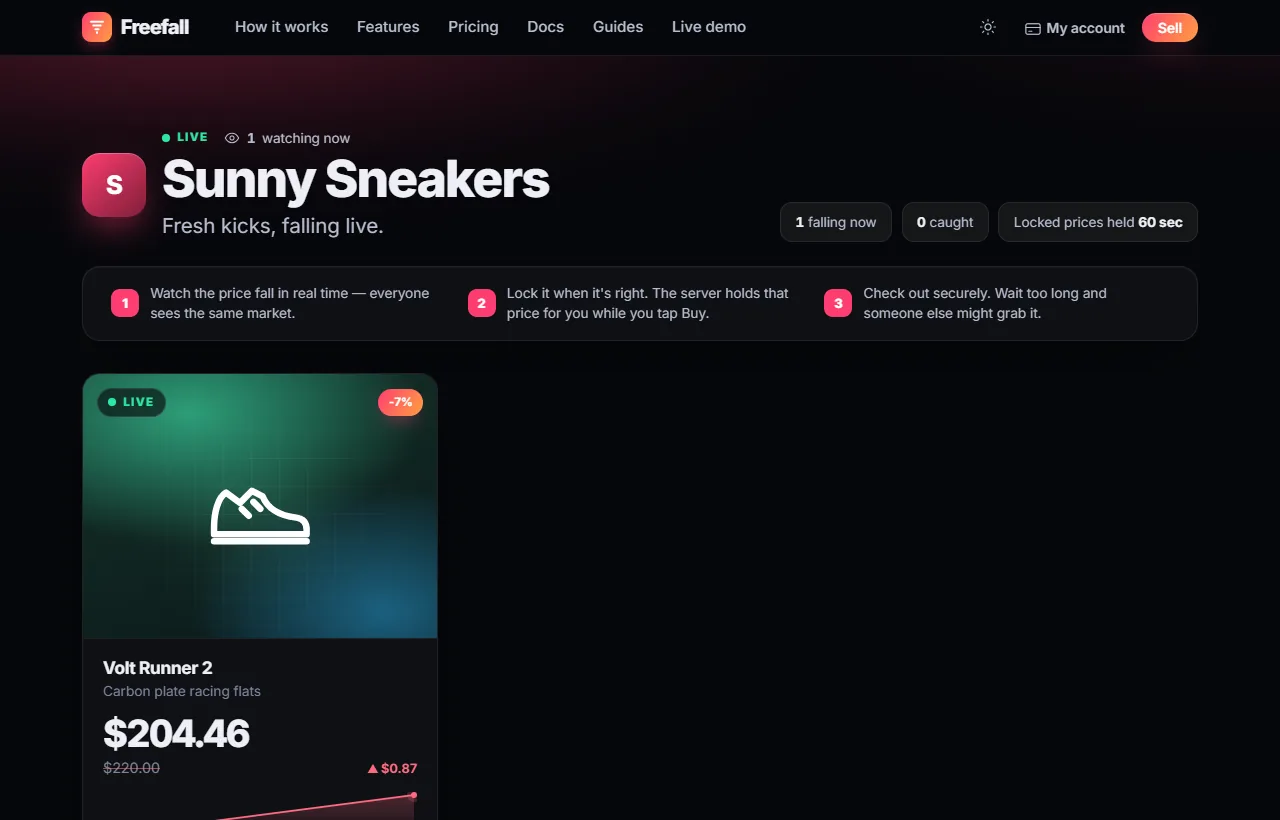
Your store now has its own page, at freefall.app/your-store. Press View live store in the menu to
open it. Share this link anywhere: Instagram, TikTok, email, texts or a QR code.
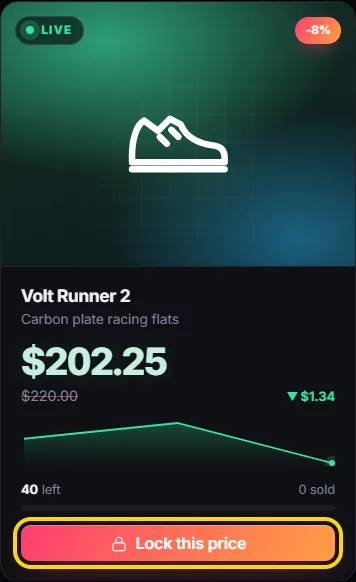
What shoppers do:
- They watch the price fall.
- When they like it, they press Lock this price. That price is held just for them for 1 minute.
- They press Buy and pay with the card saved in their Freefall account.
- You get the order, with their name and shipping address.
7 Put it on your website
Putting drops on your own website needs the Trader plan or higher. No website? You can skip this step.
a. Tell Freefall your website's address. In the menu, press Embed & API keys. Under
Allowed origins, type your website's address, starting with https://, then press Save origins.
Drops only show on the websites in this list.
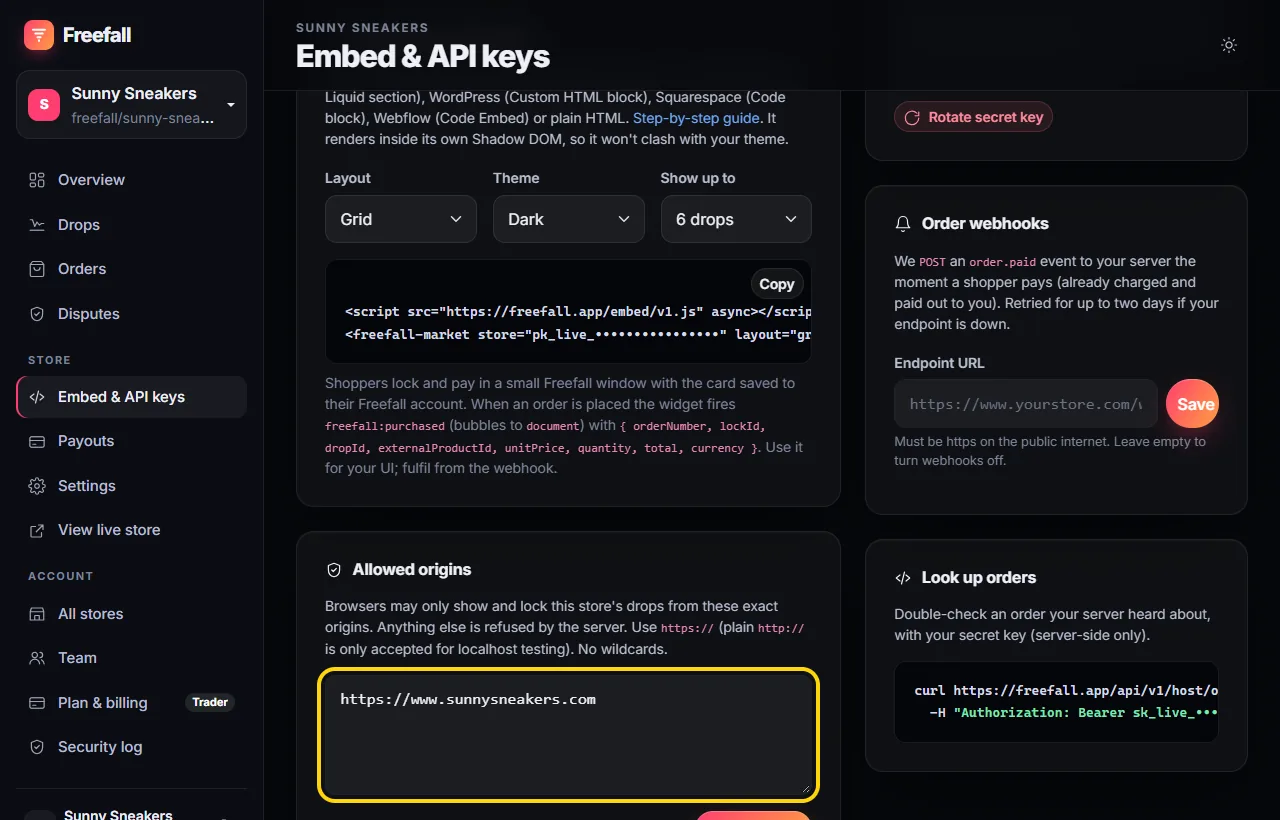
On Shopify, add both addresses: your own one (like https://www.yourstore.com) and
https://yourstore.myshopify.com.
b. Copy your code. On the same page, under Embed on your website, choose how it should look, then press Copy.
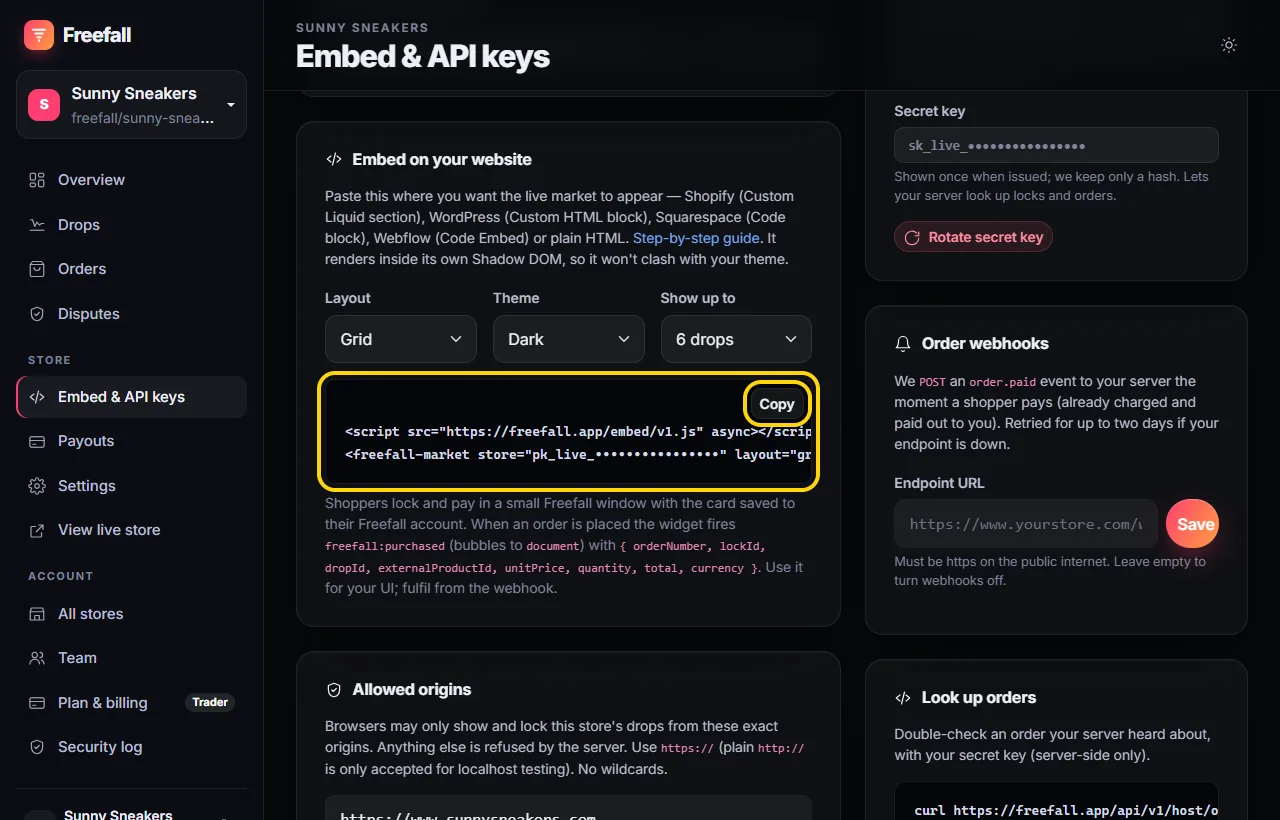
c. Paste it into your website. Where to paste it depends on your website builder:
| Your website | Where to paste |
|---|---|
| Shopify | Online Store → Themes → Customize → Add section → Custom Liquid |
| WordPress | Edit the page → + → Custom HTML block |
| Squarespace | Edit the page → Add block → Code |
| Webflow | Add panel → Code Embed element |
| Anything else | Anywhere in your page's HTML |
Save and open your website. Your drops are there, falling live:
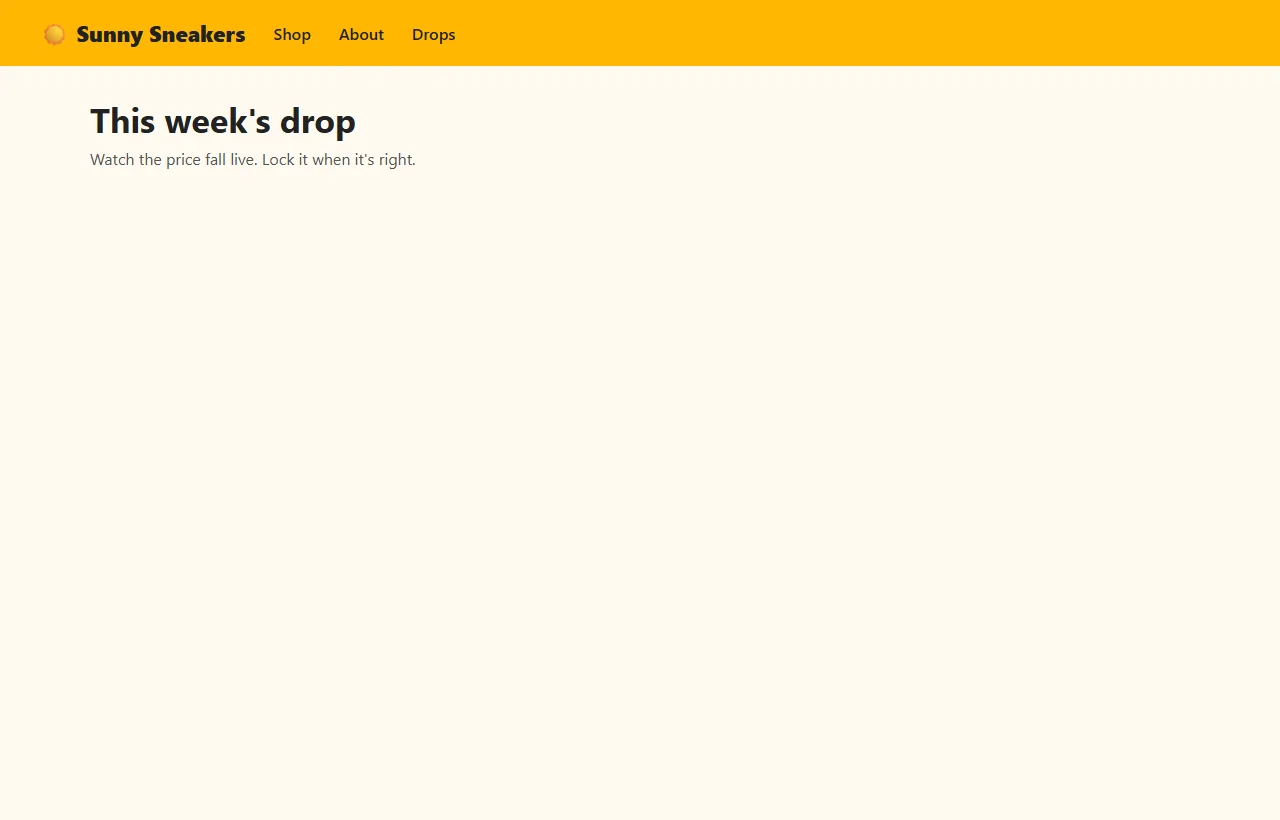
Shoppers lock and pay in a small Freefall window that pops up over your page. Your drops don't change your Shopify or WooCommerce stock, so set the drop's quantity to the units you're putting in the drop.
8 Get your orders
Every sale shows up under Orders in the menu, with the shopper's name, email and shipping address. Pack it, ship it with your carrier, and press Mark shipped. If someone needs a refund, press Refund on the same page. Your own return policy applies.
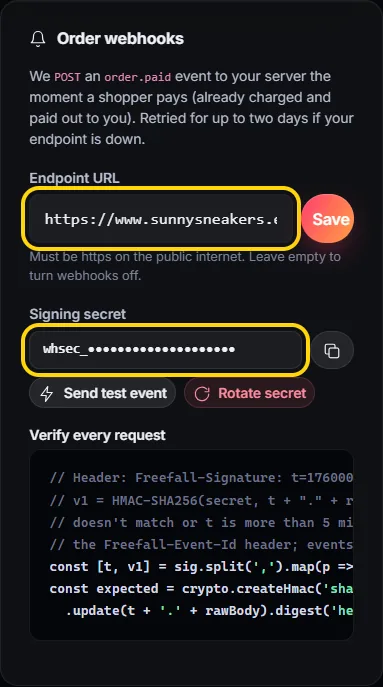
Want orders sent straight to your own system? That's an order webhook (Trader plan and up). Type your server's address under Order webhooks and press Save. Your developer will use the Signing secret to check each message really came from Freefall. See order webhooks.
Your store is live. Tell people when your next drop starts, share the link, and watch it fall. Need ideas? Read how to run a product drop and how to set a floor price.
Everything below is for developers. All URLs use https://freefallexchange.com. JSON field names are camelCase, money amounts are numbers in the
store's currency (for example 129.5), and times are Unix milliseconds unless noted.
The embed
Load the script once per page, then place a <freefall-market> element wherever drops should appear. It's a standard
web component that renders in its own Shadow DOM, so your CSS can't break it and it doesn't add globals to your page.
<script src="https://freefallexchange.com/embed/v1.js" async></script>
<freefall-market store="pk_live_…" limit="6" layout="grid" theme="auto"></freefall-market>
| Attribute | Values | Default | What it does |
|---|---|---|---|
store | pk_live_… | required | Your store's publishable key. |
limit | 1–24 | 6 | How many drops to show. |
layout | grid, list | grid | Cards in a grid, or rows in a list. |
theme | dark, light, auto | dark | auto follows the visitor's light or dark setting. |
Prices stream live over a WebSocket. The page's origin must be in the store's Allowed origins
(exact match, https://, no wildcards; http://localhost is accepted for testing). Embedding needs Trader or higher.
Browser events
When a shopper completes a purchase in the Freefall window, the element fires freefall:purchased. It bubbles to
document. Use it to update your page (say thanks, refresh a cart). Fulfil orders from the webhook,
not from this event.
document.addEventListener('freefall:purchased', (e) => {
  const { orderNumber, lockId, dropId, externalProductId, unitPrice, quantity, total, currency } = e.detail;
  console.log(`Order ${orderNumber}: ${quantity} × ${unitPrice} ${currency}`);
});
Keys
- Publishable key (
pk_live_…): identifies your store in embeds and the market API. Safe in page source. - Secret key (
sk_live_…): for your server only. Shown once when created; Freefall keeps only a hash. Rotate it on the Embed & API keys page; the old key stops working immediately. - Webhook signing secret (
whsec_…): verifies webhook requests. Rotate it on the same page.
Market API
GET /api/v1/market/{publishableKey}: the store and its visible drops right now (what the embed loads first). Public,
read-only, and checked against Allowed origins when called from a browser.
{
  "serverTimeMs": 1760700000000,
  "store": { "id": "…", "name": "Sunny Sneakers", "slug": "sunny-sneakers", "tagline": "Fresh kicks, falling live.",
             "accentColor": "#ff3d71", "currency": "usd", "acceptsCheckout": true, … },
  "drops": [{
    "id": "…", "title": "Volt Runner 2", "subtitle": "Carbon plate racing flats", "imageUrl": null,
    "retailPrice": 220, "startPrice": 210, "price": 198.12, "status": "Live",
    "quantity": 40, "sold": 0, "available": 40, "maxPerOrder": 1,
    "tickSeconds": 2, "nextTickMs": 1760700001000, "history": [210, 209.4, …]
  }]
}
status is Live, Scheduled, Paused or SoldOut. The floor price is never sent.
Errors: 404 unknown or unpublished store, 403 website not in Allowed origins, 429 too many requests.
Server API
Read-only lookups for your backend, authenticated with your secret key: Authorization: Bearer sk_live_…. Requests that
come from a browser (with an Origin header) are refused, so a secret key that ends up in front-end code fails straight away.
Look up an order
curl https://freefallexchange.com/api/v1/host/orders/{orderNumber} \
  -H "Authorization: Bearer sk_live_…"
Returns the same order object as the webhook.
Look up a lock
curl https://freefallexchange.com/api/v1/host/locks/{lockId} \
  -H "Authorization: Bearer sk_live_…"
{
  "lockId": "…", "status": "Completed", "open": false,
  "dropId": "…", "externalProductId": "SKU-1042", "title": "Volt Runner 2",
  "unitPrice": 198.12, "quantity": 1, "total": 198.12, "currency": "usd",
  "expiresAt": 1760700060000, "orderNumber": "…"
}
Lock status: Active, CheckoutStarted, Completed (bought), Expired or
Cancelled. Errors: 401 bad or missing key, 404 not found in this store, 429 too many requests.
Order webhooks
Freefall sends a POST with a JSON body to your endpoint when an order is paid. The endpoint must be https:// on the
public internet. Reply with any 2xx within 10 seconds. Anything else is retried after 1 minute, 5 minutes, 30 minutes, 2 hours, 6 hours, 12 hours, 24 hours
(about 2 days in all), then marked failed. You can see recent deliveries on the Embed & API keys page,
and send a ping event with Send test event.
| Header | Value |
|---|---|
Freefall-Signature | t=<unix seconds>,v1=<hex HMAC-SHA256> |
Freefall-Event-Id | Unique per event. Events can arrive more than once, so ignore ids you've already handled. |
Freefall-Event-Type | order.paid or ping |
{
  "id": "3f0c…",
  "type": "order.paid",
  "created": 1760700042000,
  "data": { /* the order object */ }
}
The order object
| Field | About |
|---|---|
orderNumber | Freefall's order number. |
lockId, dropId | The lock that became this order, and its drop. |
externalProductId | Your SKU or product id, if you set one on the drop. |
title, quantity | What was bought, and how many. |
unitPrice, retailPrice, total, currency | The locked price per unit, the retail price shown, and the amount charged. |
status | Paid, Fulfilled, Refunded or Cancelled. |
customerEmail, customerName, shippingAddress | Who to ship to. Shipping is handled by your store. |
platformFee, processingFee, payout | Fees taken from the sale, and what's paid out to you. |
createdAt | When the order was paid. |
Checking signatures
Compute HMAC-SHA256 of t + "." + rawBody with your signing secret, compare it to v1 in constant time,
and reject the request if it doesn't match or t is more than 5 minutes old. Use the raw request body,
before any JSON parsing.
Node.js (Express)
const crypto = require('crypto');

app.post('/webhooks/freefall', express.raw({ type: 'application/json' }), (req, res) => {
  const sig = Object.fromEntries((req.get('Freefall-Signature') || '').split(',').map(p => p.split('=')));
  const body = req.body.toString('utf8');
  const expected = crypto.createHmac('sha256', process.env.FREEFALL_WEBHOOK_SECRET)
    .update(sig.t + '.' + body).digest('hex');
  const fresh = Math.abs(Date.now() / 1000 - Number(sig.t)) < 300;
  const valid = fresh && sig.v1?.length === expected.length &&
    crypto.timingSafeEqual(Buffer.from(sig.v1), Buffer.from(expected));
  if (!valid) return res.status(400).send('Bad signature');

  const event = JSON.parse(body);
  if (event.type === 'order.paid') {
    // Create the order in your system once per event.id
  }
  res.sendStatus(200);
});
Python (Flask)
import hashlib, hmac, os, time

@app.post("/webhooks/freefall")
def freefall():
    body = request.get_data(as_text=True)
    sig = dict(p.split("=", 1) for p in request.headers.get("Freefall-Signature", "").split(",") if "=" in p)
    expected = hmac.new(os.environ["FREEFALL_WEBHOOK_SECRET"].encode(),
                        f"{sig.get('t')}.{body}".encode(), hashlib.sha256).hexdigest()
    if abs(time.time() - int(sig.get("t", 0))) > 300 or not hmac.compare_digest(expected, sig.get("v1", "")):
        return "Bad signature", 400
    event = request.get_json()
    if event["type"] == "order.paid":
        pass  # create the order once per event["id"]
    return "", 200
PHP
$body = file_get_contents('php://input');
parse_str(str_replace(',', '&', $_SERVER['HTTP_FREEFALL_SIGNATURE'] ?? ''), $sig);
$expected = hash_hmac('sha256', ($sig['t'] ?? '') . '.' . $body, getenv('FREEFALL_WEBHOOK_SECRET'));
if (abs(time() - (int)($sig['t'] ?? 0)) > 300 || !hash_equals($expected, $sig['v1'] ?? '')) {
    http_response_code(400); exit;
}
$event = json_decode($body, true);
if ($event['type'] === 'order.paid') {
    // create the order once per $event['id']
}
http_response_code(200);
Limits
- Locks: a locked price is held for 1 minute, with up to 3 minutes more if the shopper's bank runs a card check. Each shopper can hold one open lock per store at a time, and repeated locking is limited to keep drops fair.
- API: requests are rate-limited. If you get
429, wait a little and try again. - Shipping: shoppers can use US and Canadian addresses. Each store handles its own shipping; the locked price is the full amount charged.
- Currencies: USD, CAD, EUR, GBP and AUD, set per store.
If something's wrong
| What you see | What to do |
|---|---|
| The drops don't show on my website | Check your website's exact address is in Allowed origins (with https:// and www. if you use it), your store is published, and you're on Trader or higher. Some website builders only run code on the published site, not in the editor. |
| "This website is not allowed to use this store" | Add that website address to Allowed origins and save. |
| Shoppers can't press Lock | Connect your payouts (step 3) and make sure the drop has started and isn't sold out or paused. |
| My store page says it can't be found | Publish your store (step 4). |
| Webhooks fail | Your endpoint must be https://, public, and reply 2xx within 10 seconds. Check Recent deliveries on the Embed & API keys page. |
| Signatures don't match | Use the raw body (before JSON parsing) and the current signing secret. If you rotated it, update your server. |
Ready? Your first drop takes 10 minutes.
Free on one store with unlimited live drops. Your first drop can be live in minutes.